Blog


Most desk setups don’t need a full overhaul. They just need a few small fixes.
Maybe your cables keep falling behind the desk. Maybe your neck aches after a few hours of staring at a laptop screen that’s too low. Maybe you’ve run out of USB ports and you’re constantly swapping things around just to charge your phone.
These are the kinds of problems that don’t seem like a big deal until you’re dealing with them every single day. And the good news is that most of them can be solved for well under $50.
This guide covers ten desk upgrades that are actually worth buying. Not trendy gadgets. Not things that look good in a setup photo but get shoved in a drawer after a week. Just practical, affordable accessories that make daily desk use noticeably better — whether you’re working from home, studying, or just want a cleaner workspace.
Affiliate Disclosure
Techconxt participates in Amazon Associates and other affiliate programs. If you purchase through our links, we may earn a small commission at no additional cost to you. We only recommend products we believe are genuinely useful. Learn more
Table of Contents
Why Small Desk Upgrades Actually Matter
There’s a tendency to think that better gear means expensive gear. A standing desk, a ultra-wide monitor, a mechanical keyboard — sure, those things are great. But most people don’t need all of that to have a comfortable, functional setup.
What most people need is:
- Enough ports to plug everything in without juggling adapters
- A way to stop cables from turning into chaos
- Lighting that doesn’t give them a headache
- A screen at the right height so they stop hunching
These are fixable problems. And at the $10–$50 range, fixing them doesn’t require any budget planning or justification. It’s the kind of thing you order, it arrives, and a week later you can’t imagine working without it.
That’s the threshold a good desk upgrade should clear.
Quick Comparison Table: Best Desk Upgrades Under $50
| PRODUCT | BEST FOR | Est. Price | Standout Feature |
|---|---|---|---|
| Anker 4-Port USB 3.0 Hub | Laptop users, students | $15–$30 | Up to 5Gbps transfer speed |
| Anker 323 USB-C Charger 33W | Phone & tablet users | $20–$35 | Dual port, foldable plug |
| Logitech M240 Silent Mouse | Offices, shared spaces | $15–$25 | Quiet Bluetooth, no dongle |
| Lamicall Adjustable Laptop Stand | Remote workers, posture | $25–$45 | Adjustable height + foldable |
| Monitor Light Bar | Evening work, students | $30–$50 | Space-saving, no desk footprint |
| Large Desk Mat | Everyone | $10–$30 | Instant visual upgrade, non-slip |
| Cable Management Tray | Home office, gamers | $20–$40 | Hides cables under the desk |
| Magnetic Cable Clips | All users | $8–$15 | Keeps cables accessible, reusable |
| Adjustable Phone Stand | Video calls, content | $10–$20 | Works during charging, adjustable |
| USB-C Docking Adapter | MacBook, slim laptop users | $25–$50 | HDMI + multi-port from one cable |
Prices change often, so check the product page for the latest price and availability.
10 Best Desk Upgrades Under $50
1. Anker 4-Port USB 3.0 Hub
$15-$30
The problem it solves: Modern laptops ship with fewer ports than most people actually need. If you’ve ever had to unplug your mouse to charge your phone, you know the frustration.
The Anker 4-Port USB 3.0 Hub adds four full-size USB ports to any laptop or desktop via a single USB connection. That means you can have a keyboard, mouse, flash drive, and webcam all plugged in at the same time without rotating anything.
Anker lists up to 5Gbps transfer speeds on their USB 3.0 hubs, which is fast enough for moving files, running accessories, and connecting peripherals without any lag. In practice, it handles everything from a wired keyboard to an external hard drive without issue.
It’s small enough to sit beside your laptop or stick to the back of a monitor arm. Nothing flashy about it — it just works.
✓ Pros
- Plug-and-play on both Mac and Windows
- Compact enough to travel with
- Reliable brand with good long-term reputation
- Affordable entry point for the category
— Limitations
- Not built for high-power device charging — you’ll want a separate charger for that
- Single USB connection to your laptop means all ports share bandwidth
Who should buy it: Anyone with a laptop that’s running short on ports. Students juggling multiple accessories, office workers with a full peripheral setup, or anyone tired of swapping USB devices throughout the day.

2. Anker 323 USB-C Charger 33W
$20-$35
The problem it solves: The charger your phone or tablet came with probably works fine. But it’s likely a bulky single-port block that takes up an outlet and leaves no room for anything else.
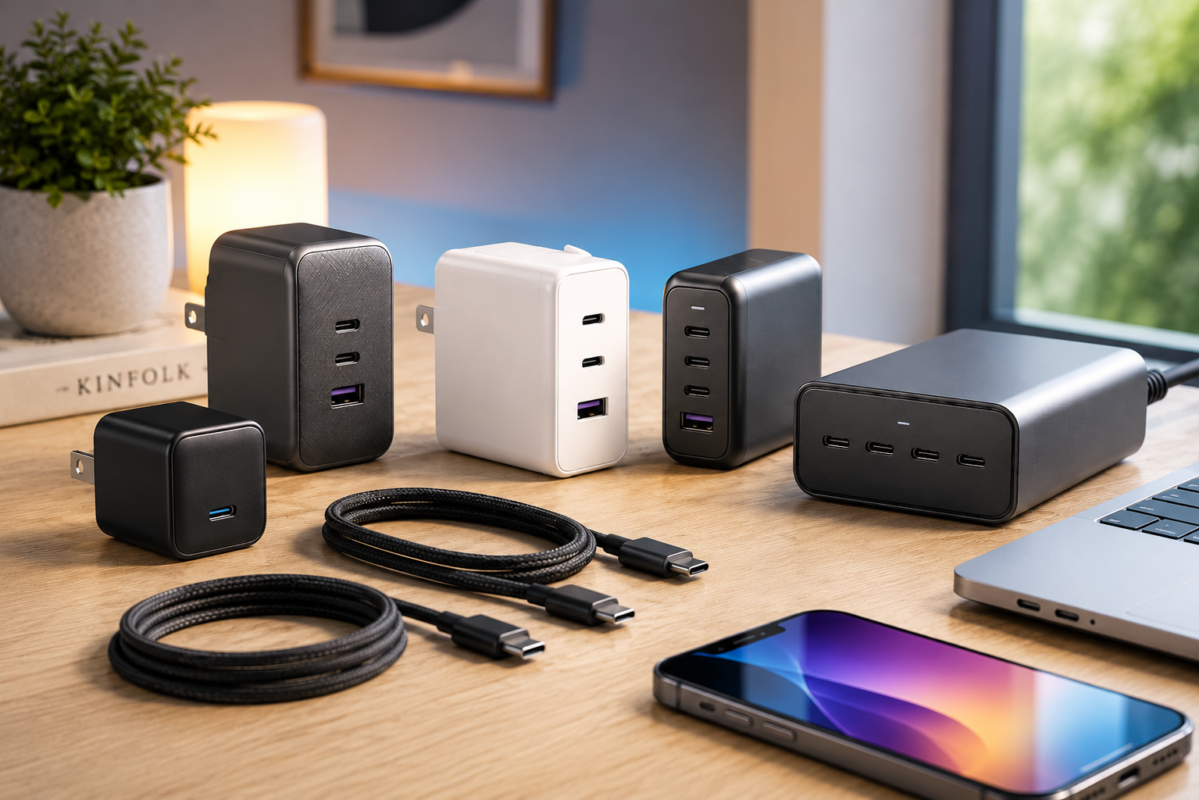
The Anker 323 is a compact 33W charger with both a USB-C and a USB-A port, so you can charge two devices simultaneously from a single wall outlet. The plug folds flat, which sounds minor but makes a real difference if you’re packing a bag or keeping a tidy desk.
At 33W, it’s more than fast enough for phones and tablets. It’s not a laptop charger — if you need to power a MacBook Pro or a gaming laptop, you’ll need something higher wattage. But for daily phone and tablet use, it handles everything cleanly.
It’s one of those things where you don’t fully appreciate how much better it is until you’ve used it for a week and then try going back to a single-port block.
✓ PROS
- Charges two devices at once from one outlet
- Compact and travel-friendly
- Foldable plug is a small but genuinely useful detail
- Anker’s build quality is consistently good
— Limitations
- 33W is not enough for power-hungry laptops
- USB-C port handles the fast charging; USB-A is standard speed
Who should buy it: iPhone, Android, and tablet users who want to simplify their charging setup. Also a solid option for anyone who travels and wants to cut down on the number of chargers they carry.
3. Logitech M240 Silent Bluetooth Mouse
$15-$25
The problem it solves: Standard mice click loudly. In a quiet office, coffee shop, or shared apartment, that clicking sound adds up quickly — both for you and everyone around you.
The Logitech M240 is a compact Bluetooth mouse with noticeably quieter clicks than a typical mouse. It connects via Bluetooth without any USB dongle, which keeps your ports free and makes setup completely frictionless. Logitech makes wireless and Bluetooth mice for work, school, and home use across the board — the M240 is positioned as their everyday quiet option.
It’s not a precision gaming mouse. The DPI is modest, the design is simple, and there are no programmable buttons or RGB lighting. But that’s the point. For everyday computing — browsing, documents, spreadsheets, email — it does exactly what a mouse should do, without the noise.
✓ PROS
- Noticeably quieter than standard mice
- Pure Bluetooth — no USB receiver needed
- Easy pairing, works with multiple devices on some models
- Logitech’s build quality is reliable at this price range
— Limitations
- Not suitable for gaming or design work requiring high precision
- Basic feature set — no programmable buttons or scroll customization
Who should buy it: Office workers in quiet environments, students in libraries, people who share a workspace, or anyone who’s been told their mouse is too loud.
4. Lamicall Adjustable Laptop Stand
$25-$45
The problem it solves: Laptops are designed to be portable, not ergonomic. When you use one at a desk, the screen sits well below eye level — which means you end up tilting your head down for hours, and your neck and upper back pay for it.
A laptop stand raises the screen to a more natural viewing height, which is one of the most impactful ergonomic changes you can make to a desk setup. Lamicall specializes in device stands and holders, and their adjustable aluminum model is one of the more popular options because it balances price, stability, and portability well.
The stand folds flat, so you can slide it into a bag when you need to work somewhere else. You’ll need an external keyboard and mouse to use it comfortably once the laptop is raised — but that’s the case with any stand. If you’re already using a Bluetooth mouse like the M240 listed above, you’re halfway there.
✓ PROS
- Immediate ergonomic improvement — reduces neck and shoulder strain
- Adjustable angle works for different monitor heights and preferences
- Folds flat for travel or storage
- Aluminum build feels sturdy at this price
— Limitations
- Requires an external keyboard and mouse to use properly
- At lower price points, the angle adjustment can feel a bit stiff
Who should buy it: Anyone who uses a laptop as their primary computer and sits at a desk for more than an hour or two per day. This is especially relevant for remote workers and students who spend long stretches at a fixed workspace.
5. Monitor Light Bar
$30-$50
The problem it solves: Desk lamps take up space. Overhead lighting often creates glare on your screen. Neither option is ideal for focused desk work, especially in the evening.
A monitor light bar sits on top of your monitor and directs light downward onto your desk surface — not toward your eyes or into the screen. It’s USB-powered, so it runs off a spare port without needing a separate outlet. The result is focused, practical desk lighting that takes up zero desk space.
Several brands make these — Quntis, Baseus, and MELIFO are among the more commonly recommended options in the under-$50 range. Most have adjustable brightness and some offer a warm/cool color temperature switch. For evening work sessions or setups where ambient lighting is poor, it makes a real difference in how comfortable the workspace feels.
✓ PROS
- Doesn’t take up any desk space
- USB-powered — no extra outlet needed
- Reduces eye strain from poor ambient lighting
- Most models have adjustable brightness
— Limitations
- Fit can vary depending on monitor thickness and bezel design
- More aggressively curved monitors may not hold the clip securely
Who should buy it: Anyone who works evenings, studies late, or has a workspace with inconsistent lighting. Also worth considering if you’re on video calls regularly and need better desk-level illumination.
6. Large Desk Mat
$10-$30
The problem it solves: A bare desk surface often looks and feels unfinished. Your mouse skips around on wood grain, your keyboard shifts when you type hard, and if the desk is cheap, you’re slowly scratching the surface every time you move something.
A large desk mat solves several problems at once. It gives your mouse a consistent, smooth surface to glide on. It prevents your keyboard from sliding around. It protects the desk underneath. And — perhaps most noticeably — it makes the whole setup look more intentional and cohesive.
This is one of the lowest-cost upgrades on the list with one of the highest visual payoffs. Brands like Logitech and Aothia make solid options in the $10–$30 range. Most come in various sizes, colors, and materials — leather-look, cloth, and hybrid options are all available.
✓ PROS
- Cheap upgrade with an immediate visual impact
- Protects the desk surface
- Provides a consistent mouse and keyboard surface
- Comes in styles to match virtually any aesthetic
— Limitations
- Cloth mats can stain and show wear over time
- Lower-quality mats may curl at the edges after a few weeks
Who should buy it: Anyone who wants to improve their setup’s appearance without spending much, or anyone whose mouse struggles on a bare wood or glass desk surface. It’s a strong first upgrade for people just starting to build out their workspace.
7. Cable Management Tray
$20-$40
The problem it solves: Cables. Specifically, the pile of them that accumulates under or behind a desk — power strips sitting on the floor, chargers snaking across the surface, everything tangled with everything else.
An under-desk cable management tray mounts beneath the desk (usually with screws or strong adhesive) and holds your power strip and cables out of sight. It’s not a particularly exciting product to describe, but it might be the single most visually transformative item on this list. A desk with visible cable chaos looks cluttered regardless of how nice everything else is. A desk with hidden cables looks clean regardless of how basic the setup is.
Options from brands like Cinati, Univivi, and Scandinavian Hub cover the under-$40 range. Metal trays tend to be more durable and hold more weight; plastic options are lighter and easier to install.
✓ PROS
- Dramatically improves how a setup looks
- Keeps power strips and cable runs organized and off the floor
- Durable metal versions hold up well long-term
- Pairs well with cable clips for a fully tidy desk
— Limitations
- Screw-mount versions require drilling into the underside of the desk
- Adhesive-only versions may not hold heavier power strips reliably
Who should buy it: Home office users, gamers, or anyone with a multi-device setup where cable management has gotten out of hand. If you’ve ever been embarrassed to show someone your desk because of the cable situation underneath, this fixes it.
8. Magnetic Cable Clips
$8-$15
The problem it solves: You set your phone down, reach for the charging cable, and it’s already fallen behind the desk. Again.
Magnetic cable clips are small adhesive-backed clips that hold your charging cables at the desk edge so they’re always within reach. Brands like Anker, Syncwire, and OHill make versions that accommodate different cable sizes and attach cleanly to most desk surfaces. Most are reusable — you can peel and reposition them if you reorganize.
It’s a genuinely tiny upgrade. At $8–$15, it’s the lowest-cost item on this list. But the number of times per day that cables fall and you have to retrieve them from behind the desk adds up, and this fully eliminates that. It’s the kind of thing where you don’t realize how annoyed the problem was making you until it’s gone.
✓ PROS
- Cheapest item on this list with an immediately noticeable benefit
- Reusable and repositionable
- Works with most charging cables (USB-C, Lightning, Micro-USB)
- Takes about five minutes to set up
— Limitations
- Adhesive can weaken on dusty, oily, or heavily textured surfaces
- Won’t work well on very thin desks where there’s no flat edge to attach to
Who should buy it: Genuinely, almost anyone. If you charge a phone or use a cable at your desk, you’ll use these. It’s a good add-on purchase to bundle with anything else on this list.
9. Adjustable Phone Stand
$10-$20
The problem it solves: A phone lying flat on a desk is hard to glance at, awkward to use for video calls, and takes up more visual space than it needs to.
An adjustable phone stand holds your phone upright at a comfortable viewing angle, usually with a channel at the base to route your charging cable through so the phone stays charged while it sits there. Most models from brands like Lamicall, Nulaxy, and UGREEN are adjustable, meaning you can shift between portrait and landscape depending on whether you’re watching something or video calling.
It’s a simple, low-cost addition that makes a phone much more useful as a secondary screen on your desk — useful for monitoring notifications, running a timer, following instructions, or keeping a video call going without holding the phone.
✓ PROS
- Keeps your phone accessible and visible without taking up much space
- Charging cable pass-through on most models
- Works in both portrait and landscape orientations
- Very affordable at $10–$20
— Limitations
- Budget models may feel wobbly with heavier phones or larger devices
- Not designed for tablets over a certain size — check dimensions before buying
Who should buy it: Office workers who want to monitor their phone without picking it up, anyone on regular video calls, or people who like having a second screen for reference material or media while they work.
10. USB-C Docking Adapter
$25-$50
The problem it solves: Slim laptops — especially modern MacBooks — often ship with only one or two USB-C ports. That means you need a separate adapter for HDMI, another for USB-A, another for SD cards. It becomes a mess of dongles fast.
A USB-C docking adapter collapses all of that into a single device. One USB-C cable into your laptop, and you get HDMI output for an external monitor, multiple USB-A ports, SD card slots, and often pass-through USB-C charging — all from one hub. Brands like Anker, UGREEN, and Hiearcool cover the $25–$50 range with well-reviewed options.
This is the highest-value upgrade on the list for laptop users with limited ports. If you’re connecting an external monitor, an external keyboard, and a USB drive at your desk, you likely need something like this already.
✓ PROS
- Replaces multiple separate adapters with one device
- HDMI output supports external monitor connections
- Most models include USB-A, USB-C, and SD card slots
- High practical value for MacBook and ultrabook users
— Limitations
- Budget options at the lower end of this price range may run warm under heavy load
- 4K monitor support at 60Hz is not guaranteed on all models — check specs carefully
- Not a full docking station; not designed to replace a powered hub for heavy workloads
Who should buy it: MacBook users, anyone with a slim laptop that relies entirely on USB-C, or remote workers who connect to an external monitor and multiple accessories at their desk.
Top Recommendations
Not sure where to start? These three picks cover the most common situations.
🏆 Best Overall
Lamicall Adjustable Laptop Stand
$25–$45
If you can only pick one upgrade from this list, the Lamicall Adjustable Laptop Stand is the most impactful for the most people. The ergonomic improvement is real and immediate — and for anyone spending multiple hours at a desk, that matters more than any aesthetic or connectivity upgrade.
Pair it with the Logitech M240 mouse (since you’ll need an external mouse once the laptop is raised) and you’ve built the most functional core of a comfortable desk setup for under $70 combined.
💰 Best Budget Pick
$25–$50
The cheapest item on the list and one of the most immediately satisfying. If you’re working with a tight budget or just want a low-commitment starting point, this is the right first purchase.
Check price →🧘 Best Premium Pick (Still Under $50)
$25–$50
If you’re a laptop user who connects to a monitor and multiple peripherals, this is the one upgrade that ties an entire setup together. The utility-per-dollar at this price point is hard to beat for the right user.
Check price →Buying Guide: How to Choose the Right Desk Upgrade
Before you start adding things to a cart, it helps to identify the actual problem you’re trying to solve. Most desk frustrations fall into a few clear categories:
If you’re running out of ports: Start with the USB hub (#1) or the USB-C dock (#10) depending on which ports your laptop actually has. USB-A hubs work with older laptops; USB-C docks are the better fit for modern slim laptops and MacBooks.
If cable mess is your main issue: The cable management tray (#7) handles the under-desk chaos. The magnetic clips (#8) handle cables that keep falling off the desk. Using both together covers almost every cable-related frustration.
If you’re dealing with neck or back strain: The laptop stand (#4) is the most direct fix. It raises the screen to eye level so you stop craning your head downward. You’ll need an external keyboard and mouse, but that’s a one-time addition.
If your lighting is poor: The monitor light bar (#5) is a cleaner solution than a desk lamp — it uses no desk space, produces no screen glare, and draws power from a USB port.
If you want to improve the look of your setup: Start with the desk mat (#6). It’s the fastest visual upgrade available, and it’s one of the cheapest items on the list.
If you want to simplify charging: The Anker 323 charger (#2) handles two devices from one outlet. Combine it with cable clips (#8) and you’ve solved most of the cable clutter problem for under $25.
Frequently Asked Questions
What desk upgrade gives the most noticeable improvement for under $50?
For most people, it’s either the laptop stand or the cable management tray — depending on what bothers them more. The stand improves how comfortable it is to work. The tray improves how the setup looks. Both make a clear, visible difference from day one.
Is the Anker USB hub compatible with both Mac and Windows?
Yes. USB 3.0 hubs are plug-and-play on both platforms — no drivers needed. Just plug it in and your devices work normally.
Do I need a USB-C dock if I already have a USB-A hub?
It depends on your laptop. If your laptop only has USB-C ports, a USB-A hub requires an extra USB-C to USB-A adapter to work, which defeats the purpose. A USB-C dock connects directly to your native port and is a cleaner solution for modern laptops.
Will a monitor light bar fit on a curved gaming monitor?
Most light bars use a weighted hook that rests on the top bezel. They work on most flat and slightly curved monitors. For aggressively curved monitors, it’s worth checking the product listing for specific compatibility notes before purchasing.
Can I improve my desk setup for under $50 total using this list?
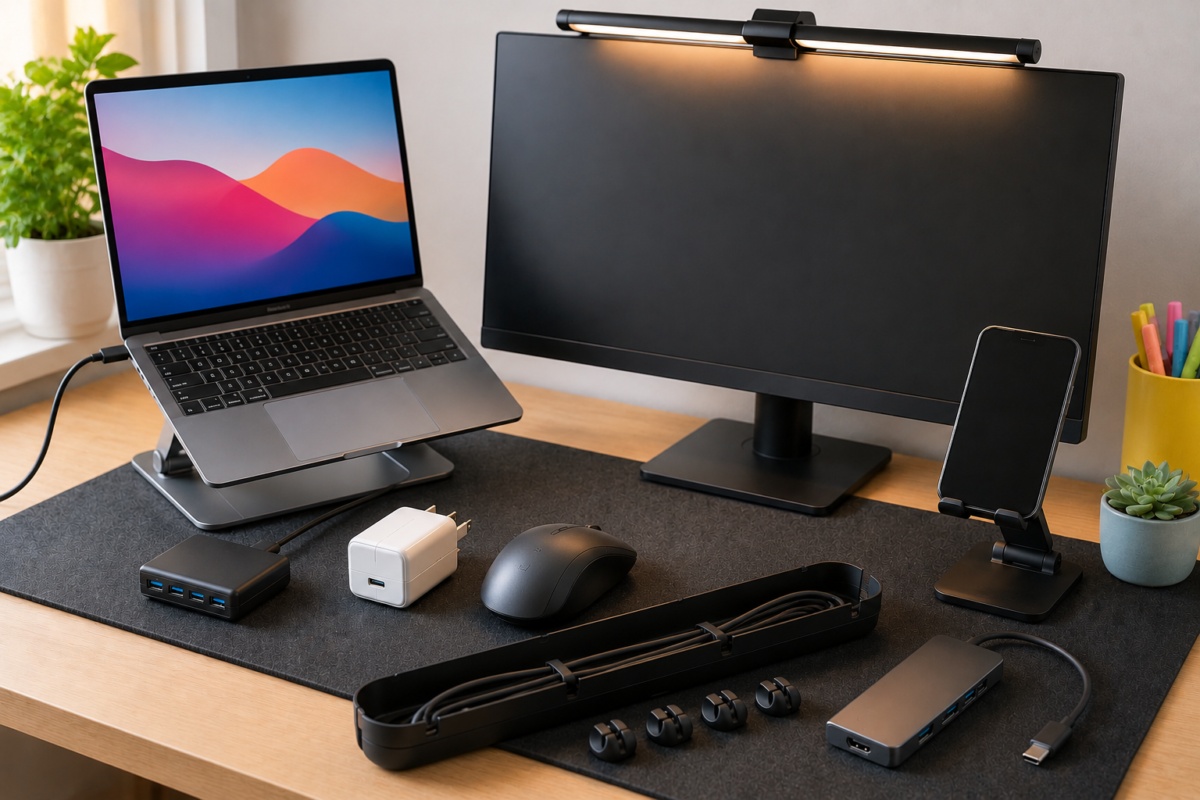
Absolutely. A desk mat ($15) + magnetic cable clips ($10) + a USB hub ($20) covers the three most common problems — appearance, cables, and ports — for around $45. Start there and build from it as needed.
Are these products worth buying if I’m on a tight budget?
Yes — in fact, this list was specifically built around that constraint. The cable clips ($8–$15) and desk mat ($10–$30) are the two lowest-cost items, and both deliver results that feel out of proportion with what they cost. Start small, see what you actually miss, and add from there.
Final Thoughts
💡——
Which Desk Upgrade Should You Start With?
A good desk setup doesn’t need to be expensive. Most of what makes a workspace uncomfortable or frustrating can be traced back to a handful of small problems — not enough ports, poor lighting, cables everywhere, a screen that’s too low. And most of those problems can be fixed for $10 to $50 each.
The products on this list were chosen because they solve real, recurring problems that everyday users actually deal with. No gimmicks, no gadgets that only exist to look good in photos.
If you’re not sure where to start: pick the item that addresses the single most annoying thing about your current setup. That’s usually the right first move. Everything else can come later.
Prices listed reflect typical ranges at time of publication. Always check current listings for the most accurate pricing. This article contains affiliate links — purchases made through these links support Techconxt at no additional cost to you.